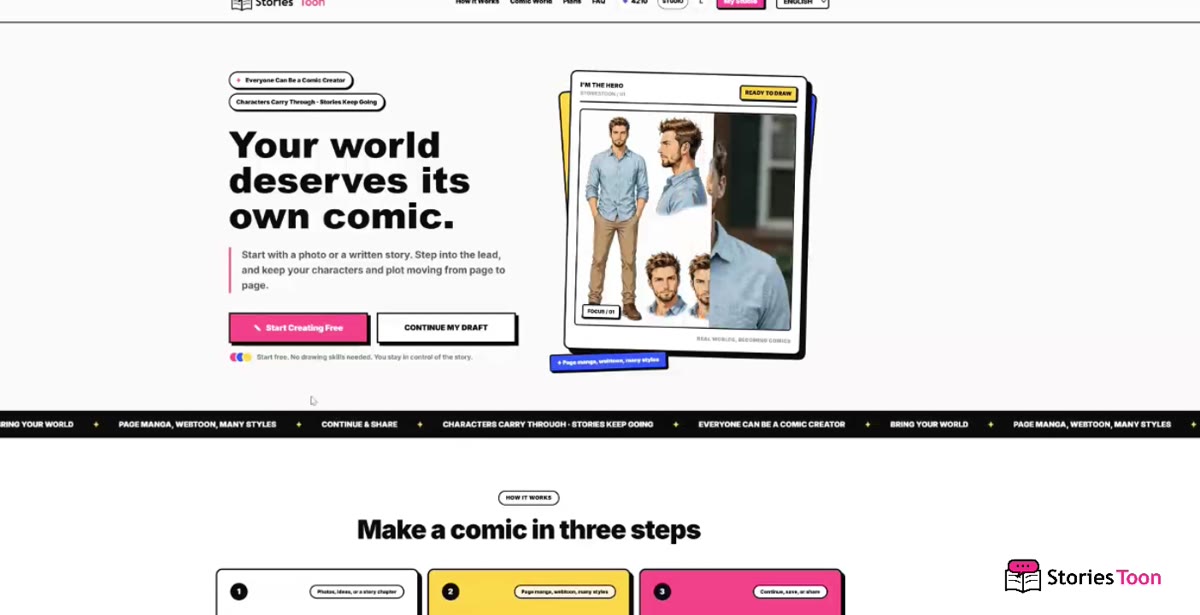
Step 1
Open StoriesToon
Visit storiestoon.com and select “Start Creating Free” to enter the creation workspace.
You can explore the setup first. Sign in before generating, saving, or publishing.
StoriesToon User Guide
Start with photos to put yourself into a story; import existing text to adapt it into a comic; or choose a target language to let your story be seen by more readers. Creation and usage rules can be found here.
Watch the complete StoriesToon workflow, from choosing a creation mode to generating, editing, and sharing a comic.
Watch on YouTube
Follow the screenshots to create a comic from a photo or adapt a written story chapter by chapter.
Start with a clear portrait, create a comic character, and build the story one page at a time.
Step 1
Visit storiestoon.com and select “Start Creating Free” to enter the creation workspace.
You can explore the setup first. Sign in before generating, saving, or publishing.
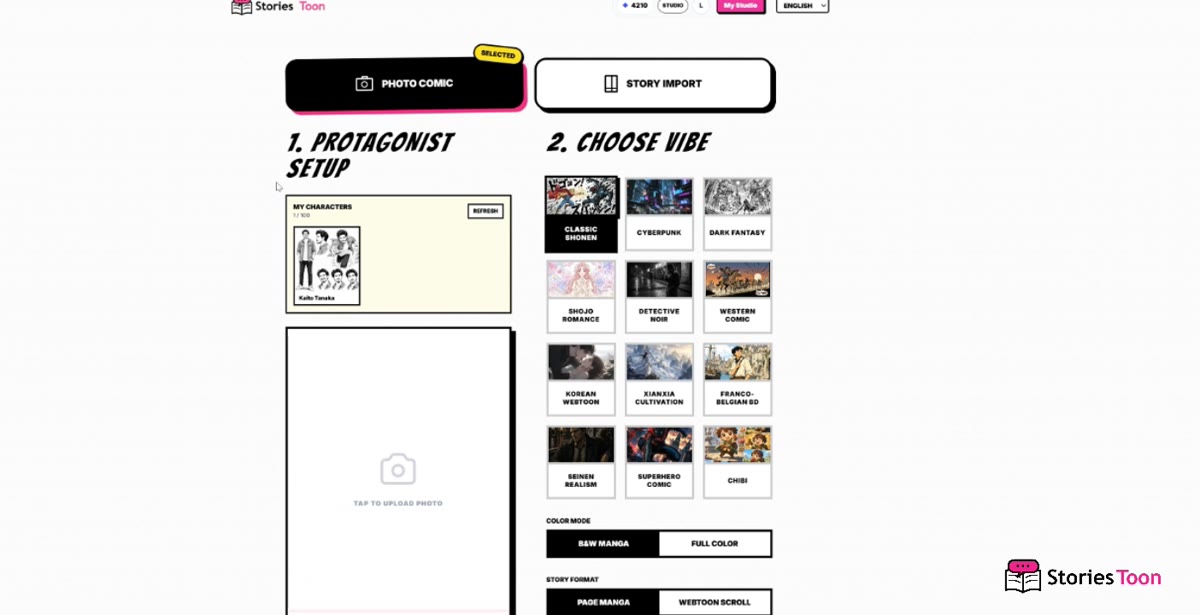
Step 2
Select “PHOTO COMIC” at the top. The left side is for the protagonist photo; the right side contains comic styles and color options.
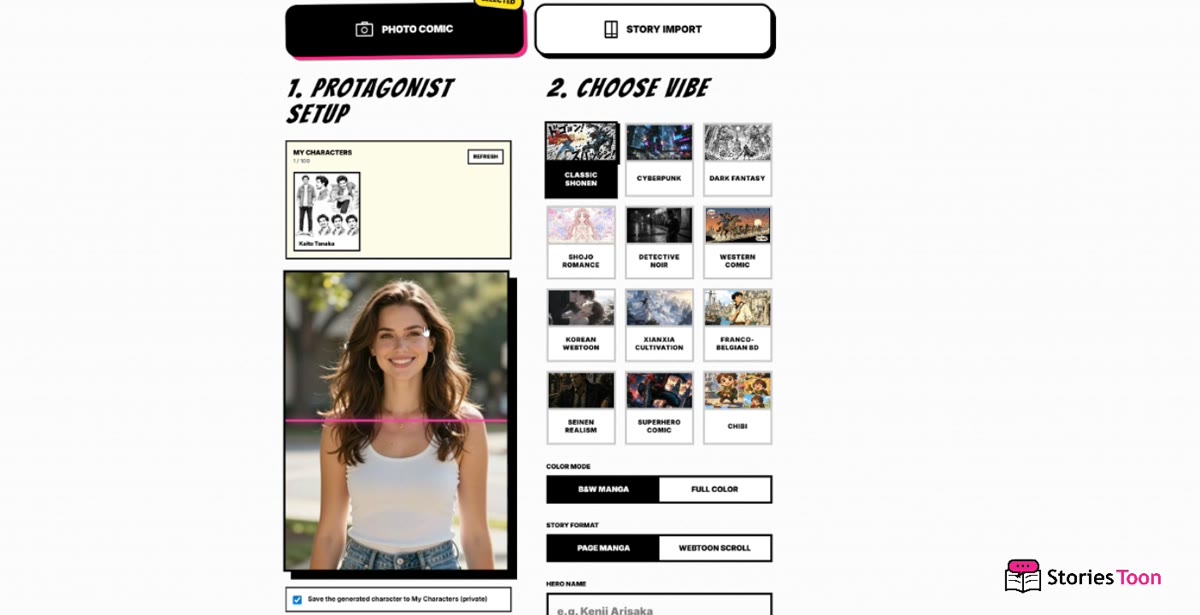
Step 3
Choose a clear, front-facing JPG or PNG with even lighting and an unobstructed face.
A portrait of at least 800 × 1000 pixels gives the character more visible detail.
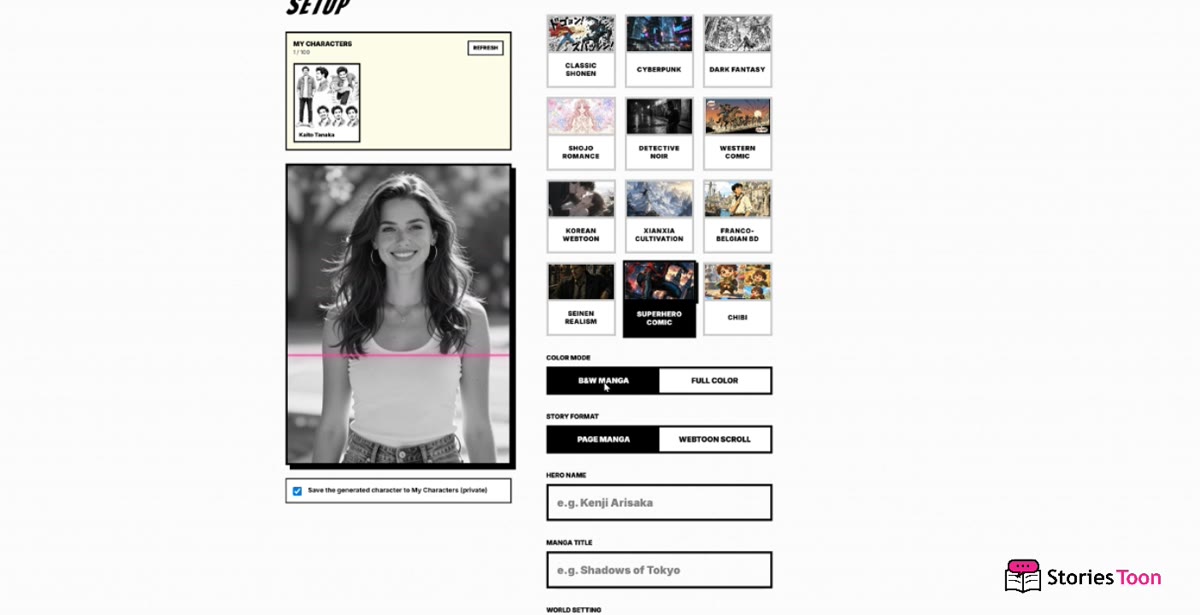
Step 4
Fill in HERO NAME, MANGA TITLE, and WORLD SETTING. You can use AI BRAINSTORM when you need a story idea.
Step 5
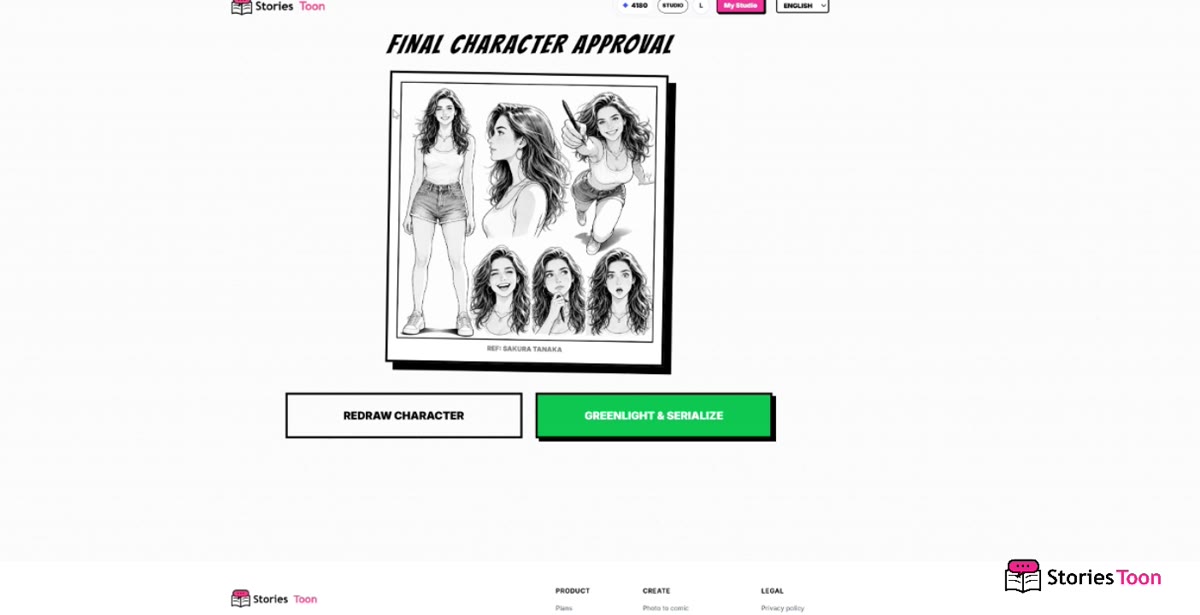
Review the generated character sheet. Select REDRAW CHARACTER to try again, or GREENLIGHT & SERIALIZE to continue.
Step 6
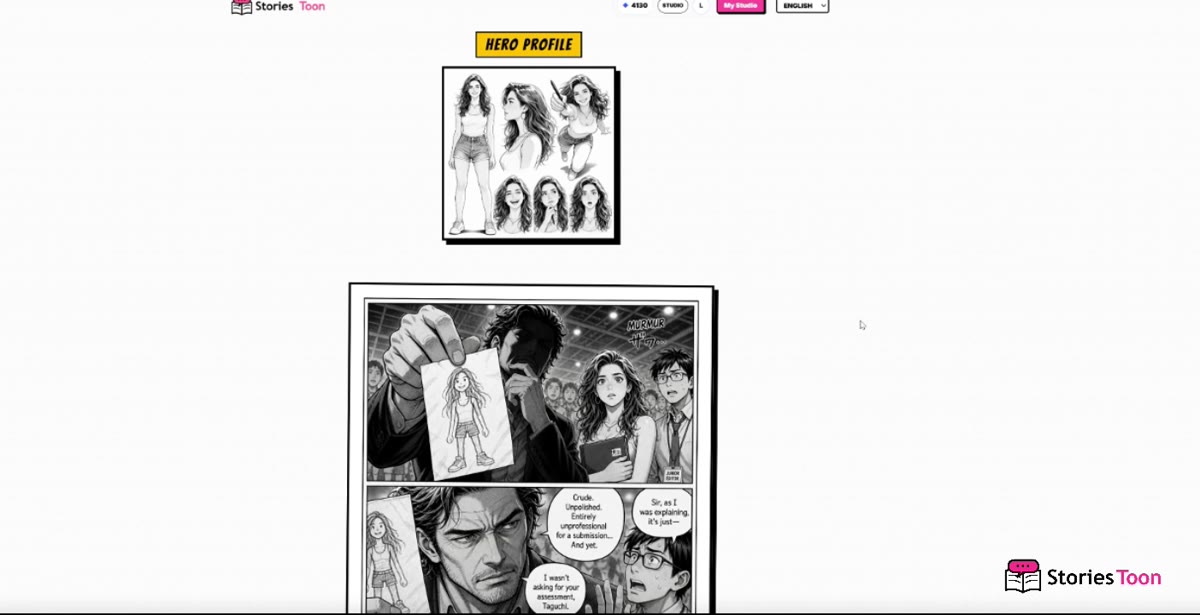
After approval, StoriesToon creates the first comic page below the HERO PROFILE. Keep the page open while generation is in progress.
Step 7
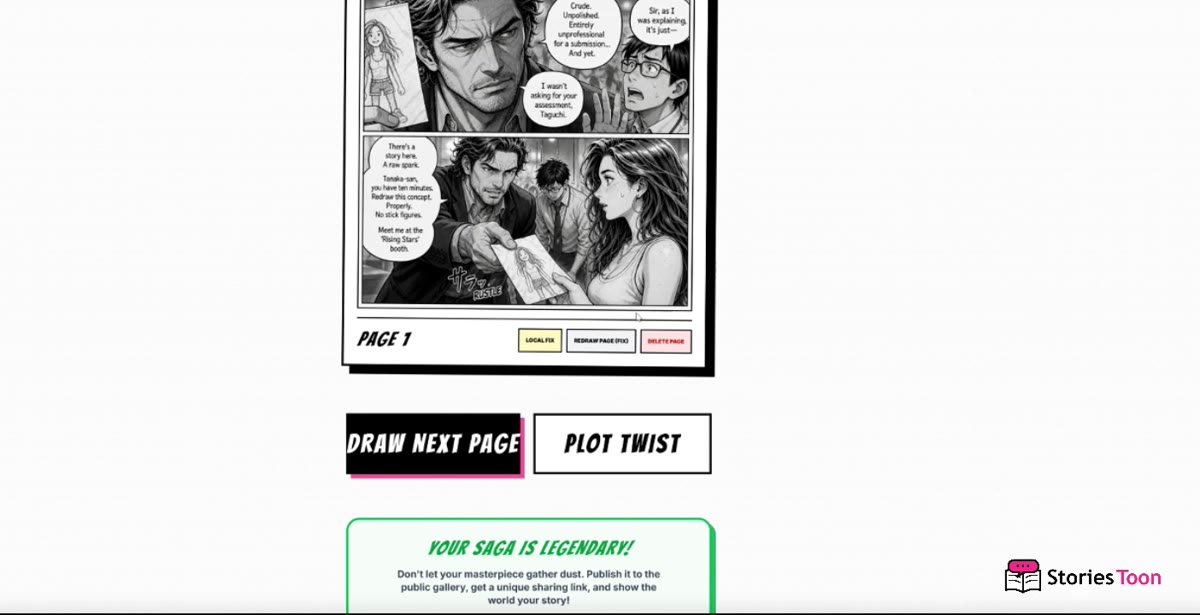
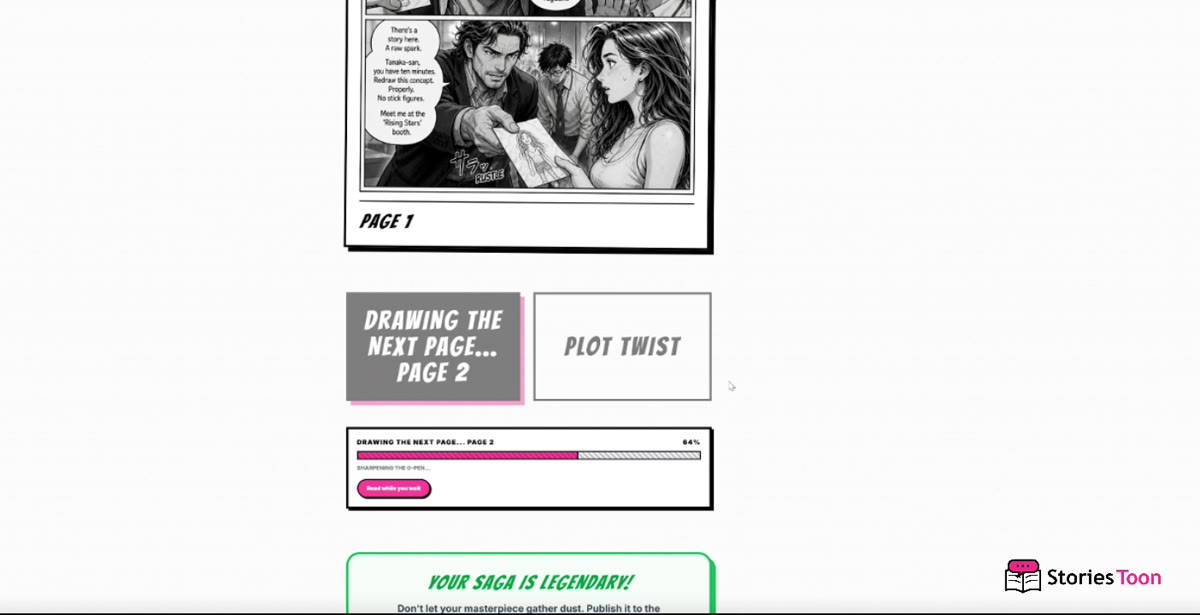
Select DRAW NEXT PAGE below the current page. Review each result before continuing.
Step 8
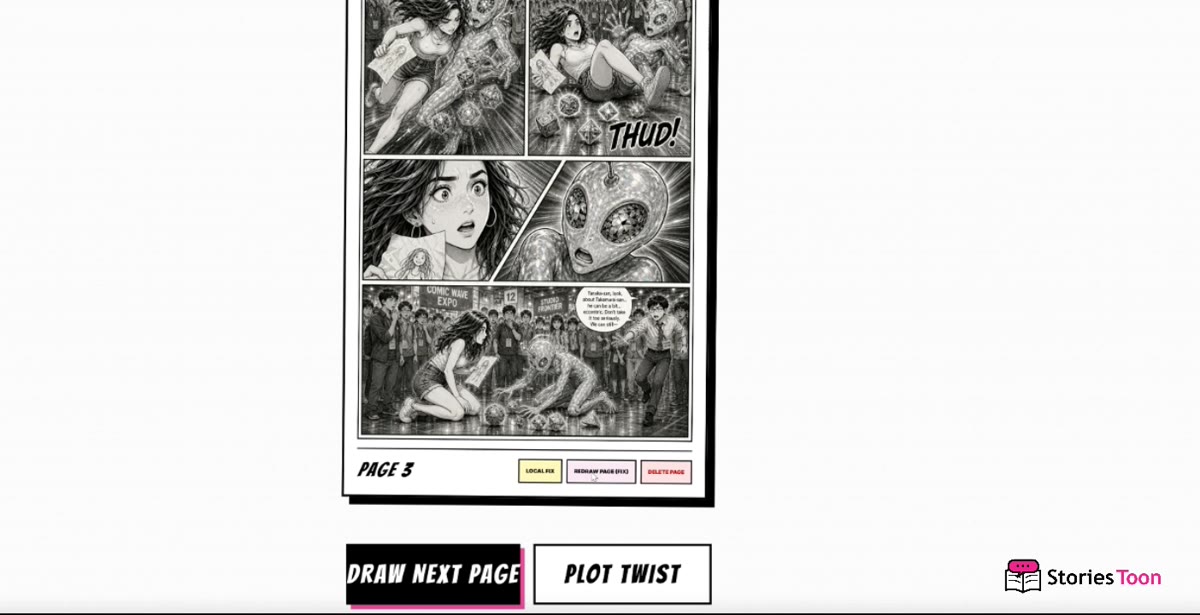
PLOT TWIST changes the next direction. LOCAL FIX edits a marked area, REDRAW PAGE (FIX) recreates the page, and DELETE PAGE removes the last draft page.
Step 9
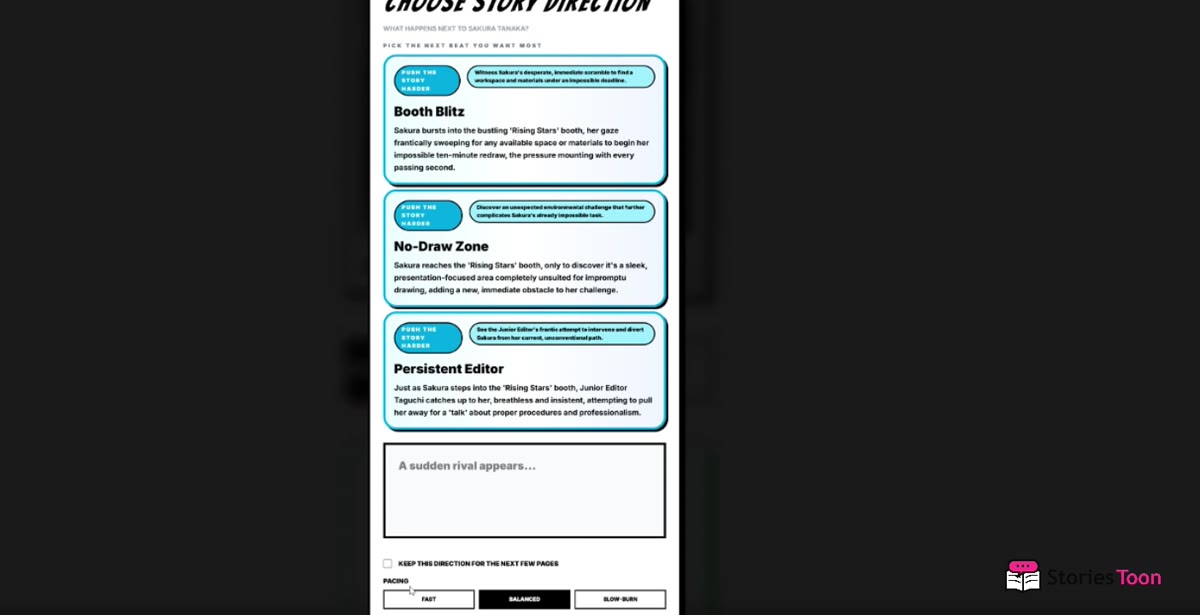
Pick a suggested direction or write your own. You can keep it for several pages and choose FAST, BALANCED, or SLOW BURN pacing.
Step 10
Select LOCAL FIX, then paint only over the clothing, object, or background area that needs correction.
For more reliable results, correct one marked area at a time.
Step 11
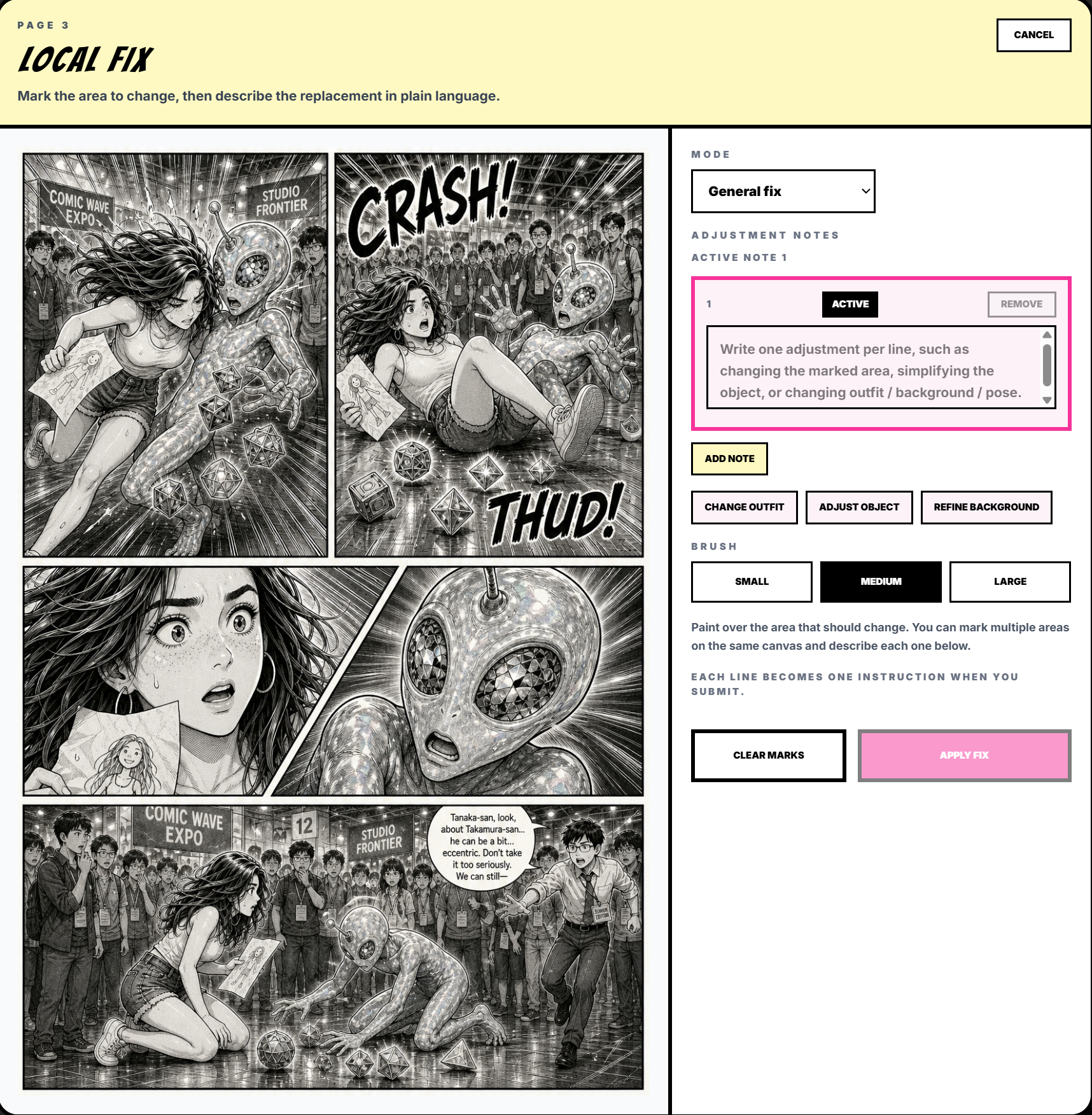
Write one clear adjustment per line, choose a quick adjustment when useful, set the brush size, and select Submit Fix.
Step 12
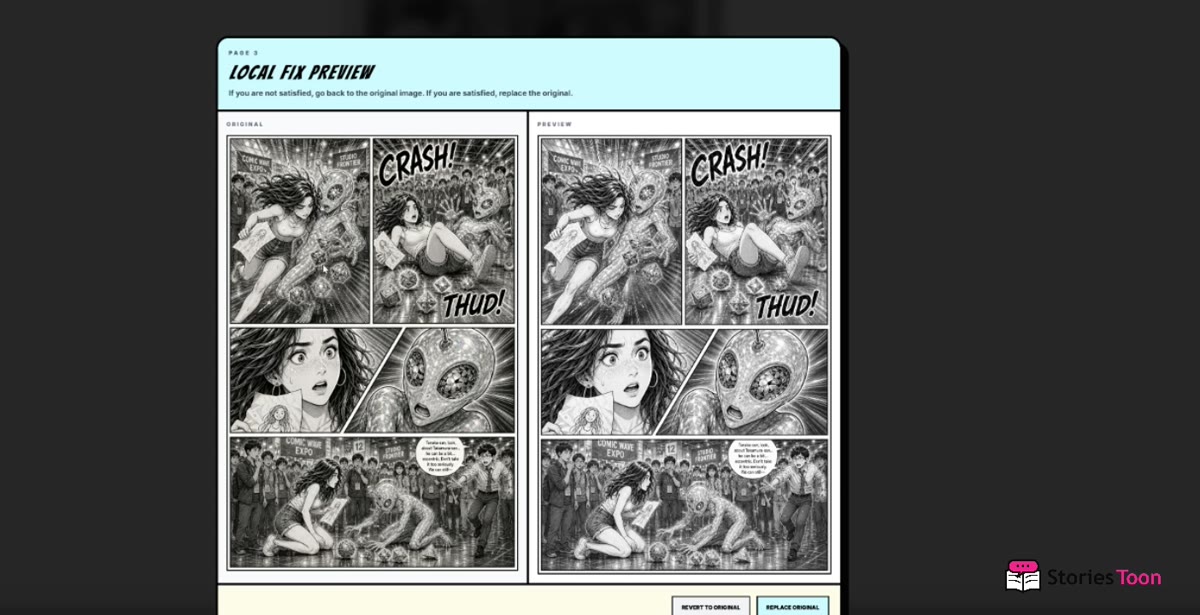
Compare Original and Correction Preview. Keep the original or replace it with the corrected image.
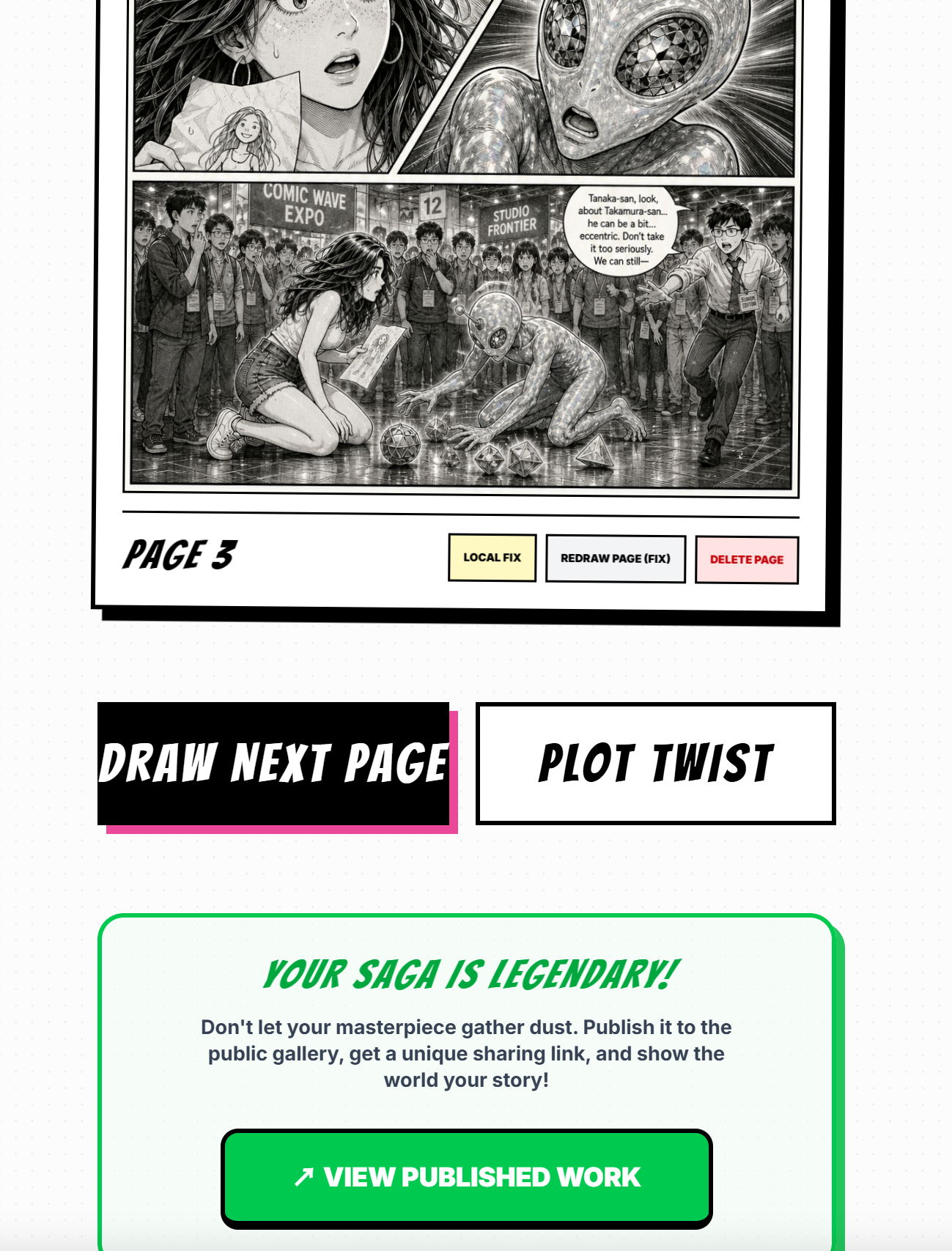
Step 13
When the comic is ready, select PUBLISH TO GALLERY and check every page, caption, and cover before continuing.
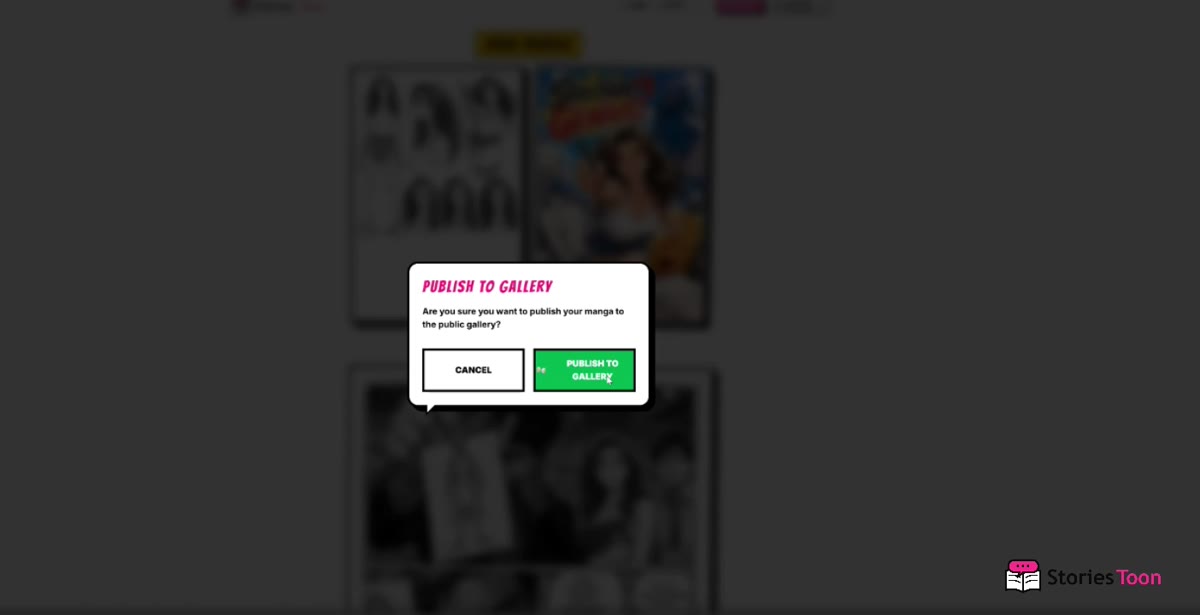
Step 14
In the confirmation dialog, select CANCEL to return or PUBLISH TO GALLERY to make the work publicly visible.
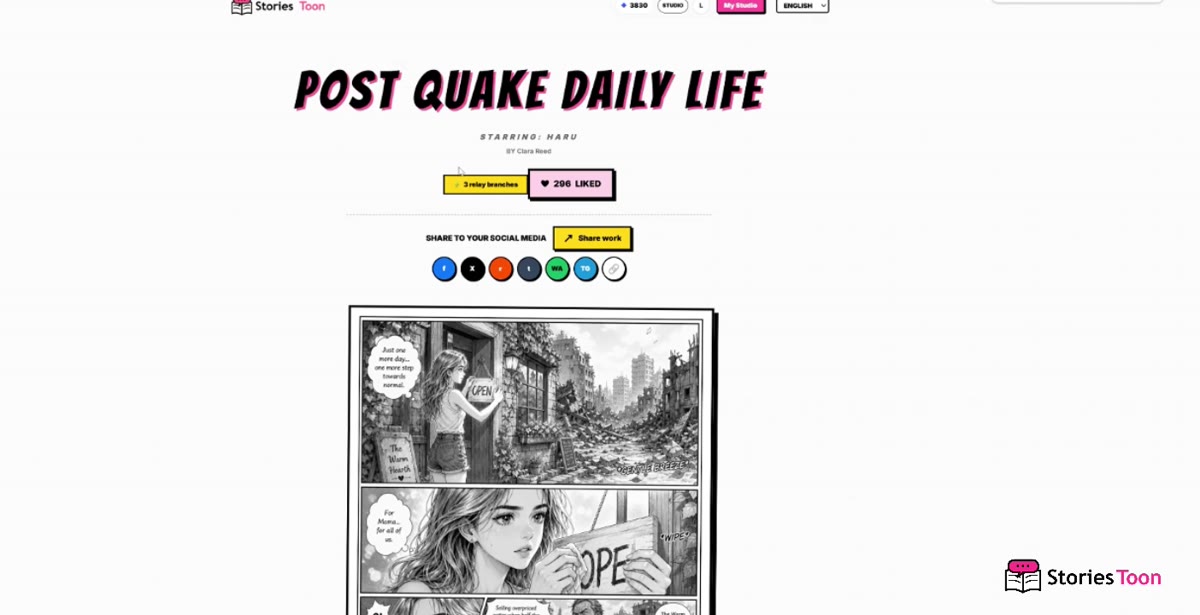
Step 15
The published work page contains its title, creator, likes, and sharing options. When “Take the pen and continue” is shown, readers can create a new branch.
Manage your characters and drafts, then discover comics shared by other creators.
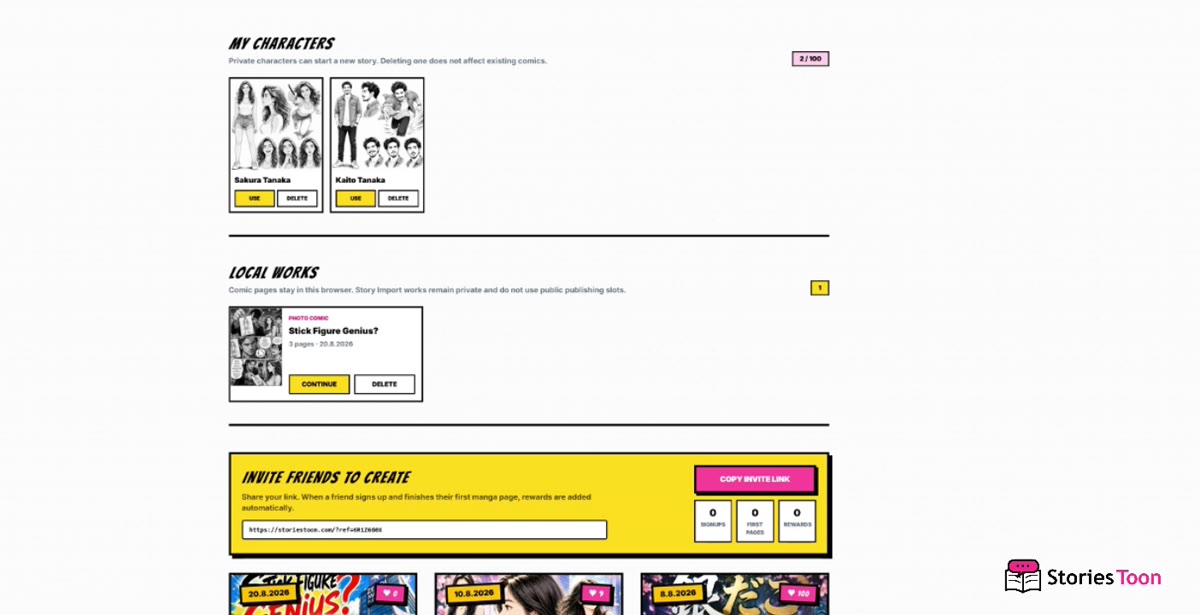
Step 16
Use My Studio to manage saved characters, local works, and invitation links. Continue or remove a draft from its work card.
Step 17
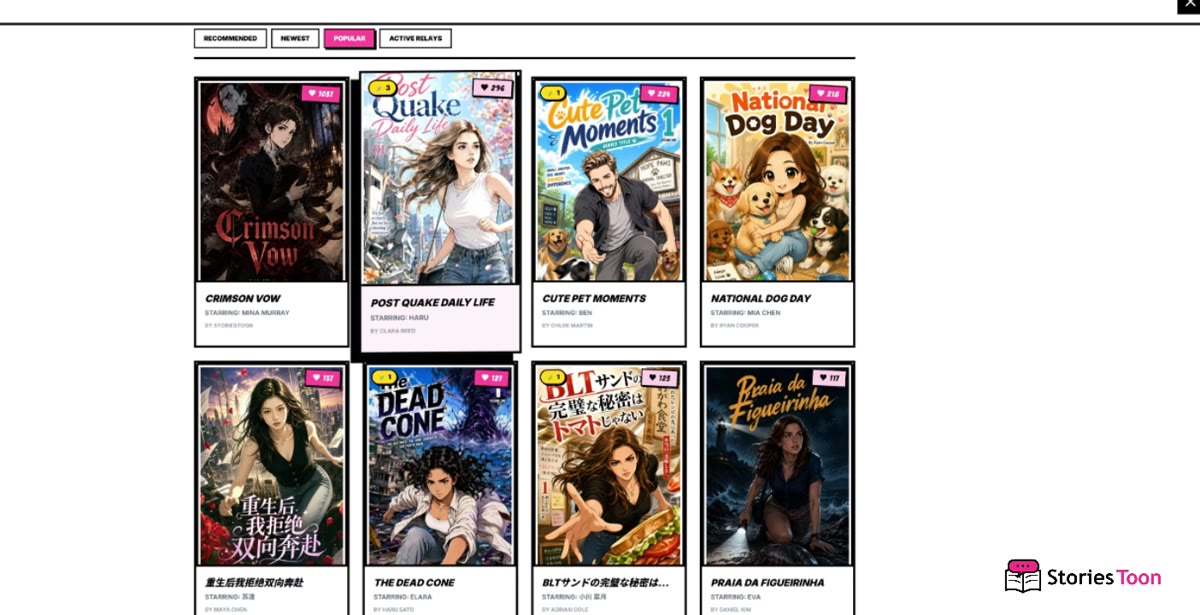
Open COMIC WORLD to browse published works by recommendation, newest, popularity, or active relay stories.
Paste a novel chapter, script, or story and turn it into a continuing comic in source order.
Step 18
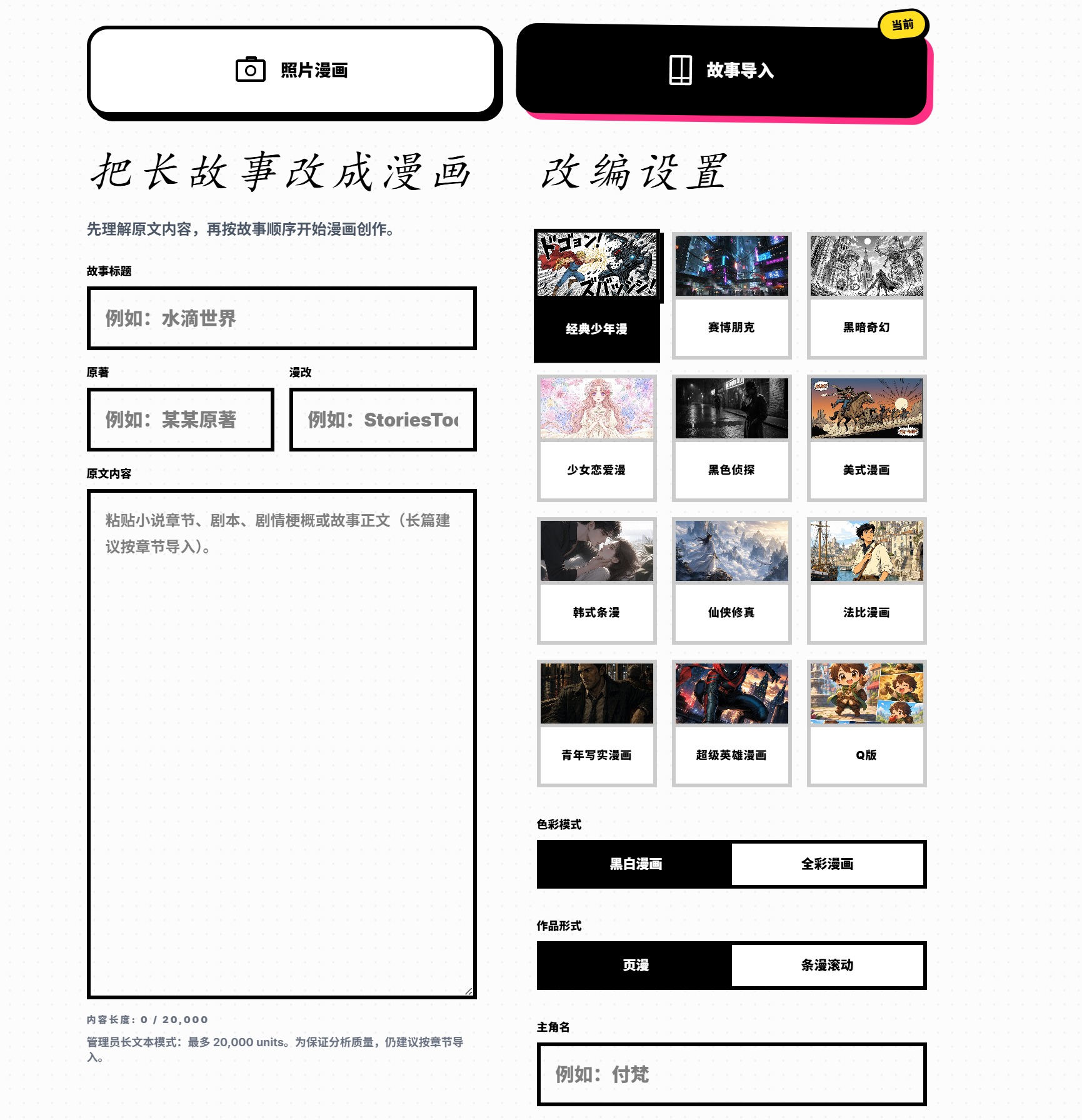
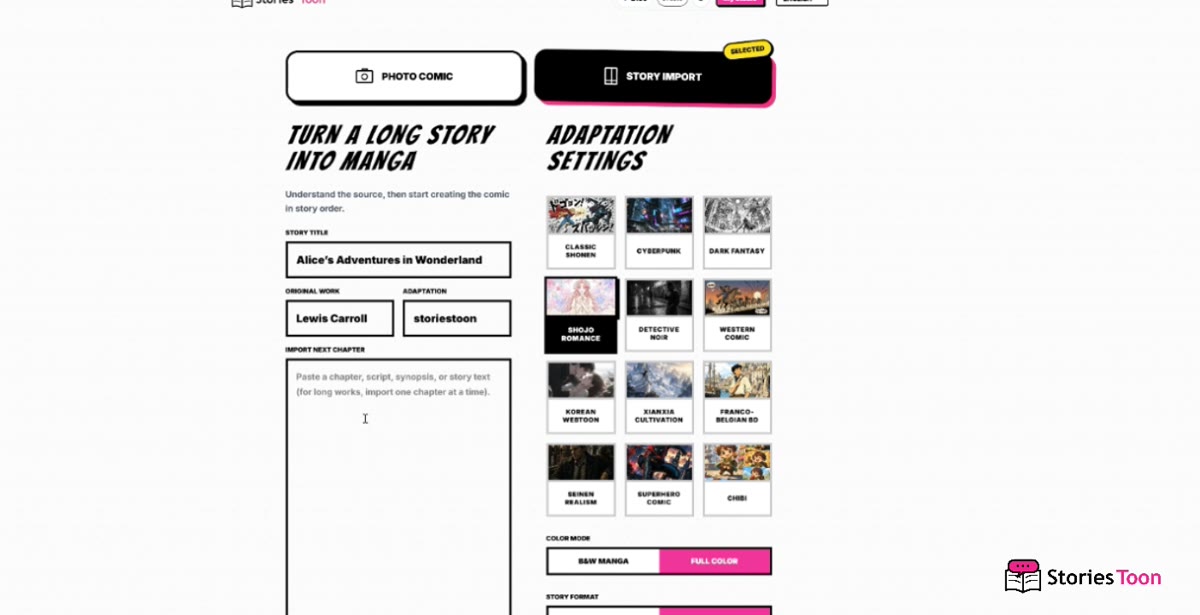
Start a new project and switch the setup tab from PHOTO COMIC to STORY IMPORT.
Step 19
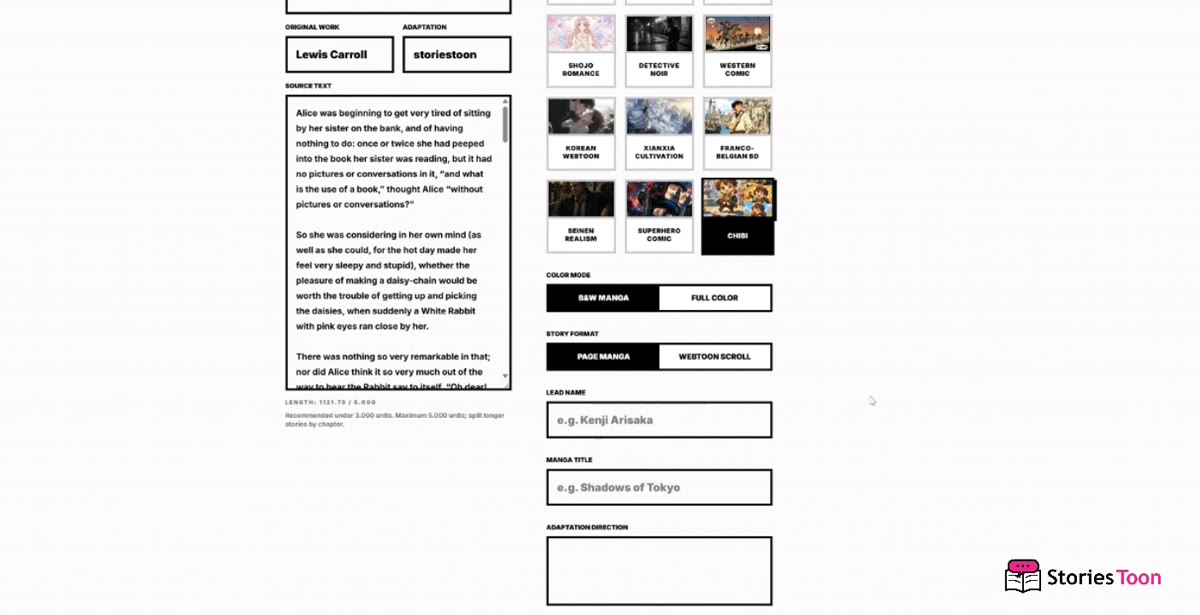
Add the story title, original author, adaptation credit, and one chapter of source text. Choose the style, color mode, and story format on the right.
If the length indicator reaches its limit, divide the chapter at a natural break.
Step 20
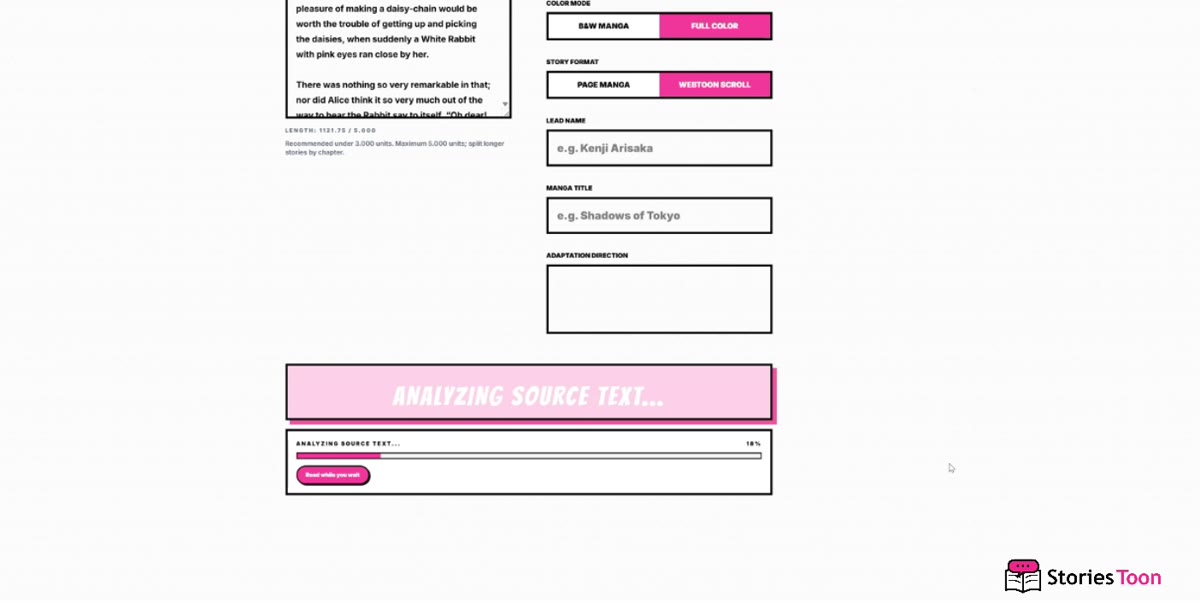
Start analysis. StoriesToon identifies characters, relationships, important scenes, objects, and ordered story events.
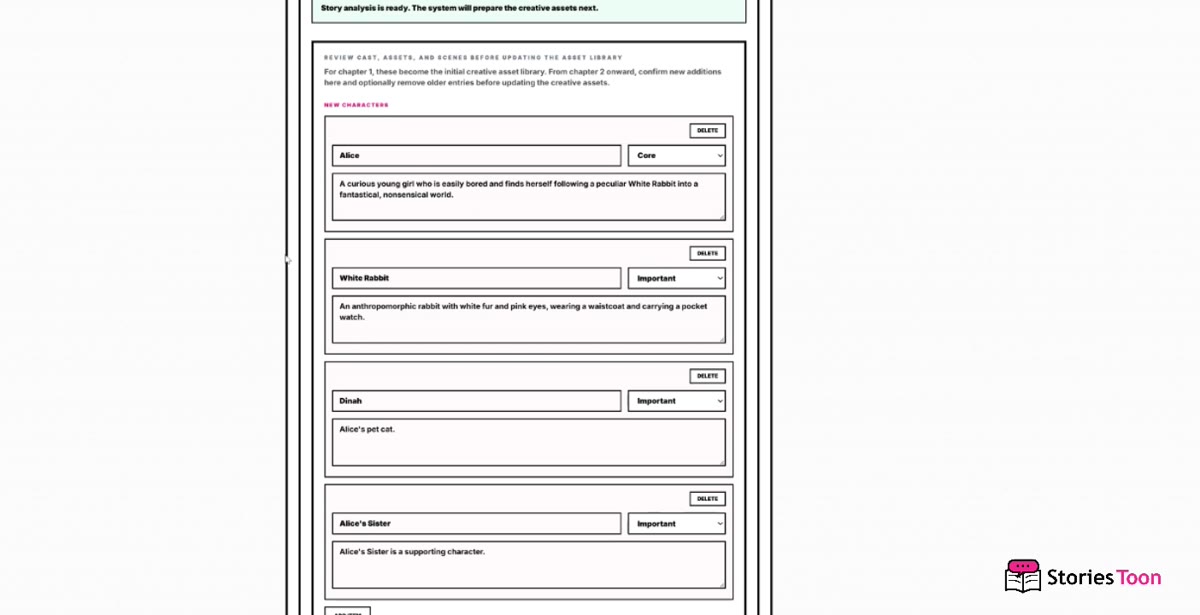
Step 21
Check each character name, importance, appearance, and role in the CREATIVE ASSET LIBRARY. Remove entries you do not need.
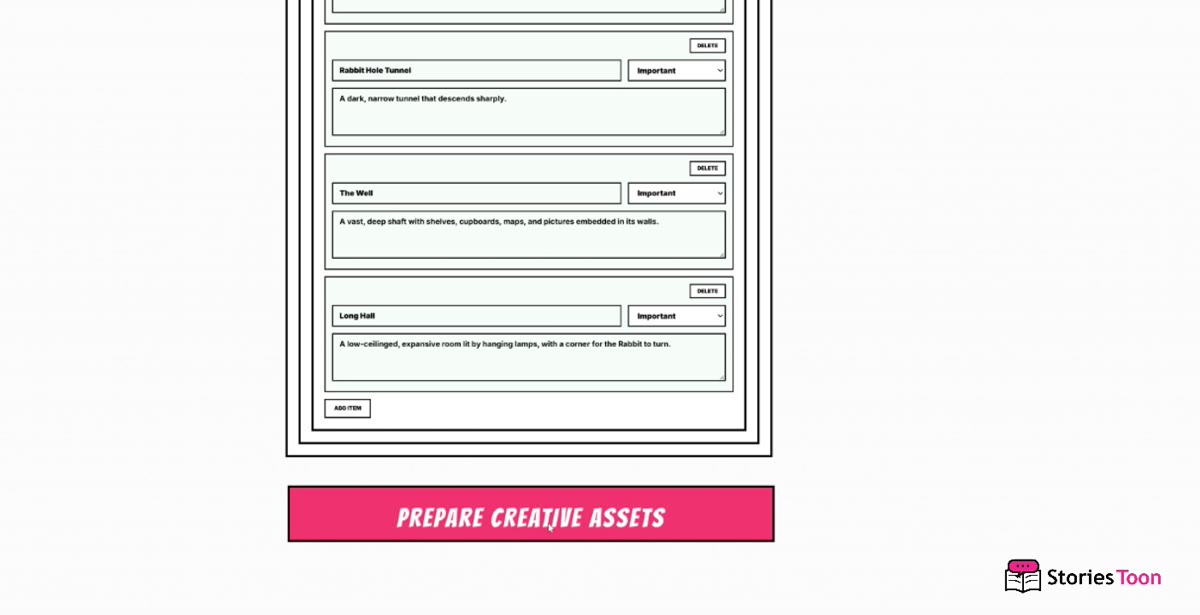
Step 22
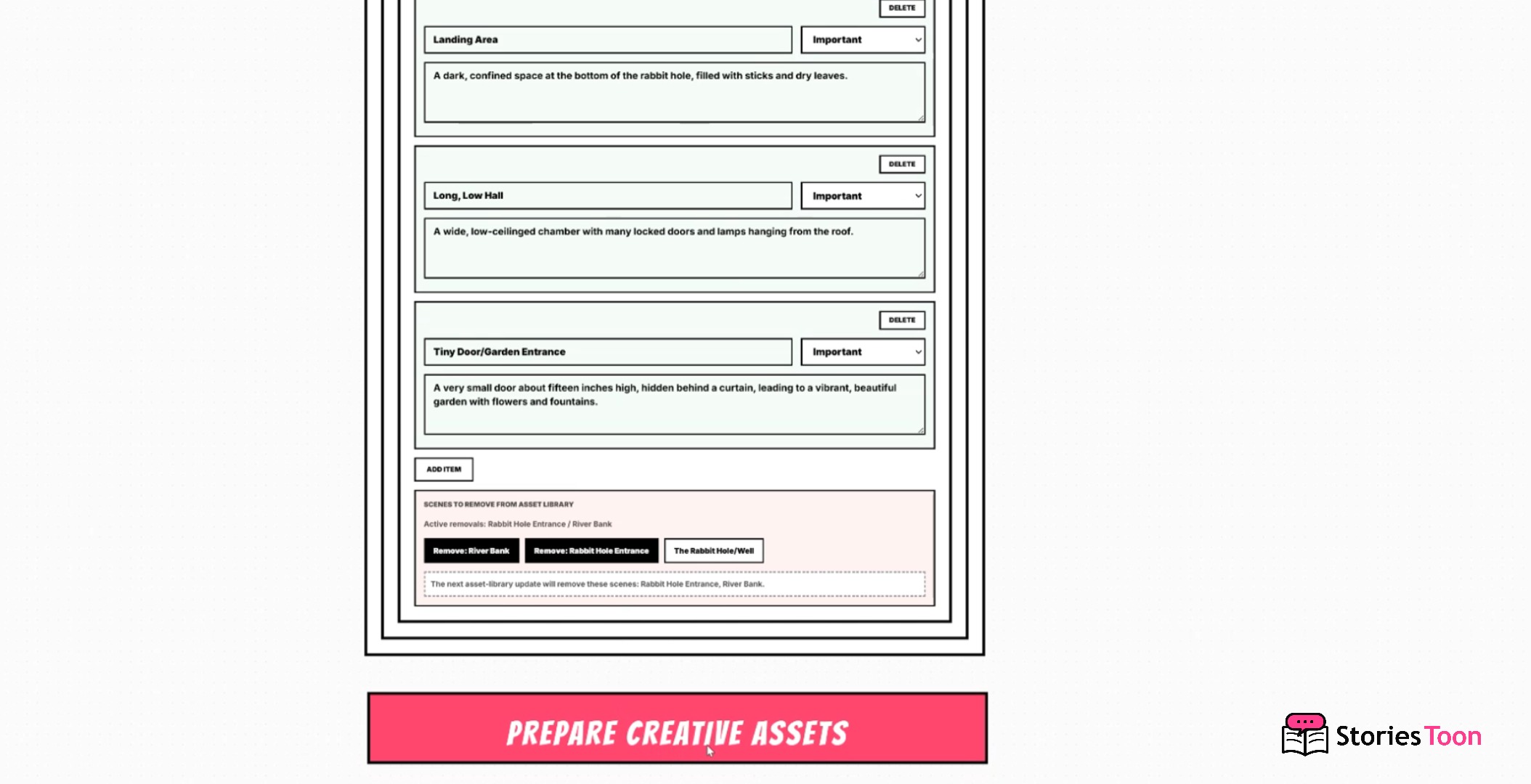
Check NEW ITEMS and their visual descriptions, then select PREPARE CREATIVE ASSETS.
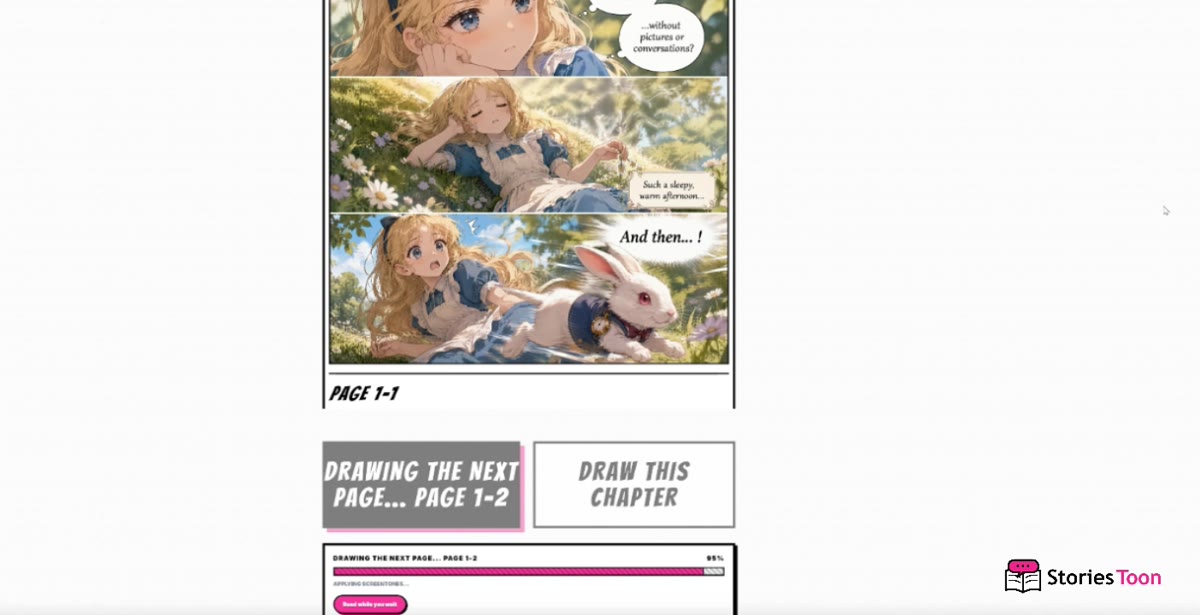
Step 23
Use DRAW NEXT PAGE for one page or DRAW THIS CHAPTER for the remaining chapter pages. Keep the workspace open while the progress bar is active.
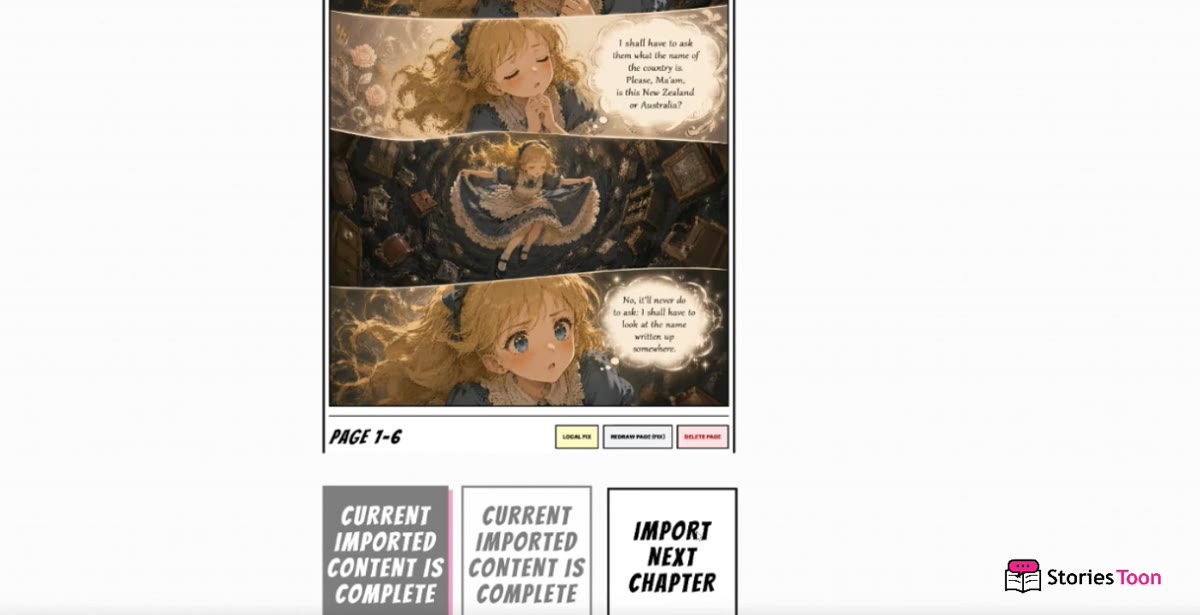
Step 24
When CURRENT IMPORTED CONTENT IS COMPLETE appears, select IMPORT NEXT CHAPTER.
Step 25
Paste the next chapter into IMPORT NEXT CHAPTER. The style, color, and format continue from the existing project.
Step 26
Review existing assets together with NEW CHARACTERS and NEW ITEMS. Correct descriptions and remove unused entries before continuing the next chapter.
Upload selfies or portraits, and let the people in the photos become the main characters of comic stories.
Turn travel, parties, anniversaries, relationships, and daily moments into comics worth saving.
Import chapters, scripts, outlines, or manuscripts, and adapt them into page comics or webtoons suitable for mobile reading.
Choose Chinese, English, Japanese, or Spanish to draw your story for readers of another language.
Create a comic in Chinese, English, Japanese, or Spanish so a story can reach readers in another language.
Make yourself, friends, or people in photos the main characters of comics
Turn travel, anniversaries, relationships, and life moments into stories
Adapt chapters, scripts, outlines, or long-form manuscripts into comics
Draw stories into Chinese, English, Japanese, or Spanish comics
You can quickly create a short story with a single photo, continuously create around fixed characters, or adapt existing text into a long-form comic chapter by chapter.
Make yourself, friends, family, or original characters the protagonists of stories.
Turn travel, parties, anniversaries, relationships, objects, and scenes into comic records.
Adapt chapters, scripts, summaries, outlines, and manuscripts into continuous stories.
AI generation may vary each time; please check every page before saving, exporting, or publishing.
See what you have: if you have photos, start with 'Photo Comics'; if you have chapters, scripts, or long text, choose 'Story Import'.
If you want the people in photos to be the protagonists, or to turn real-life moments into stories, choose Photo Comics.
When continuing to the next page, you can follow AI recommendations, choose a plot twist, or provide your own plot requirements.
If you want to adapt existing chapters, scripts, summaries, outlines, or manuscripts into comics, choose Story Import.
For long content, it's recommended to import one chapter at a time for more accurate story analysis and page planning.
The selected format determines how the finished product is read. You can choose the appropriate layout based on the publishing platform and readers' habits.
Page comics feature multi-panel compositions within fixed pages, suitable for page-by-page reading.
Webtoons use a vertical 9:16 composition for mobile reading.
One page can contain multiple panels; the number of panels is not equal to the number of comic pages.
Finished comics can be downloaded in several formats for reading, archiving, or publishing elsewhere.
Image export saves a webtoon directly as one long vertical image when the browser and selected page range support it.
PDF combines the selected finished pages into one document for reading, archiving, or printing.
ZIP packages the selected finished comic pages as individual image files, making them easier to upload to comic and webtoon platforms.
HTML exports a self-contained comic ebook that opens in a web browser for offline reading and sharing. It is an HTML file, not EPUB or MOBI.
The available cover, selected page range, and current watermark rules are applied during export. Final exports do not include private scripts or internal creation data.
创作时可以选择中文、英文、日文或西班牙文。支持的故事分析、脚本、对白和漫画文字会跟随所选语言。
一种语言写成的故事,可以面向另一种受支持语言的读者生成漫画。
漫画画面能帮助不同语言的读者理解人物、地点、动作和情绪。
导出或分享前,请检查人名、作品名、文化词汇、人物称谓、对白和页面文字。
StoriesToon 提供跨语言漫画创作,不等同于专业文学翻译或人工文化审校。
StoriesToon 会整理作品中的重要人物、物品和场景,帮助后续页面延续同一套角色形象和故事设定。
创作资产库用于整理长篇或连载中的重要人物、物品和场景。
当页面显示人物、物品或场景确认时,请检查后再继续。
重绘会生成页面的新版本;局部修改只调整选定区域,两者都可能消耗积分。
开始前请查看积分确认提示,了解本次操作的当前费用。
不同操作分别计费。下面显示当前积分标准,服务成本或活动调整时可能更新。
新账号赠送:200 积分。人物/参考形象准备:30 积分。创作资产库:30 积分。
生成漫画页:50 积分。生成封面:50 积分。重绘或修改:50 积分。
“绘制本章”按每个成功生成的漫画页收取正常页面费用;积分不足时自动停止,生成失败的页面不扣积分。
故事导入分析:不超过 1,500 输入单位消耗 20 积分;不超过 3,000 输入单位消耗 35 积分;不超过 5,000 输入单位消耗 50 积分。
故事导入建议每章不超过 3,000 输入单位,当前最大 5,000 输入单位。
每次操作开始前显示的确认提示,是该次操作最终采用的积分标准。
免费用户可以逐页完成核心创作;有效订阅会增加适合长篇项目的效率工具,并提供更多积分、工作稿容量、公开发布额度和水印权益。
订阅积分在每次续费成功后刷新为该档位当期额度,不结转到下一周期;购买积分、注册赠送和邀请奖励会一直保留到使用完。
有效期内不能重复购买当前套餐;积分不够时可购买积分包。升级到更高套餐会立即生效,Creem 按剩余周期收取差价,StoriesToon 同时按剩余周期补充新旧套餐的积分差。
“草稿导出”和“绘制本章”仅限有效订阅用户使用;免费用户仍可逐页创作并保存受支持的作品。
单独购买积分只会增加可用生成积分,不会开通订阅,也不会解锁订阅专属功能。
免费用户下载默认带 StoriesToon 水印;若当前分享流程提供去水印资格,则按页面提示执行。账号完成任一付费订单后可无水印下载,但单次购买仍不会解锁订阅专属功能。
目前只有照片漫画作品可以发布到公共区。故事导入作品保持私有,可下载支持的成品图片和格式,但不能导出完整故事导入草稿。
Free:最多 1 部公开作品,每部 12 页;Creator:最多 3 部,每部 30 页。
Pro:最多 6 部公开作品,每部 80 页;Studio:最多 10 部,每部 150 页。
公开作品数量已满时,可先删除旧作品,再发布新的作品。
邀请活动开启时,登录用户可在“我的工作室”查看专属邀请码和邀请链接。符合条件的事件只奖励一次,并受每月上限限制。
新用户绑定有效邀请码后,在正常新账号赠送之外,额外获得 50 积分。
若后台已设置,邀请码绑定成功时邀请人获得 50 积分;受邀用户首次成功生成漫画页后,邀请人再获得 50 积分。封面和创作资产准备不计入该条件。
邀请人当前每月邀请奖励上限为 500 积分。
不允许自己邀请自己、重复领取、绑定后更换邀请人或重复领取首次生成奖励。
邀请活动关闭或达到每月上限时,奖励将不再发放。
After email verification, a new account receives 200 base credits. This is separate from the campaign rewards below.
The first successfully generated comic page grants 50 credits. The first successful public share grants 50 credits.
After the second generated page, the optional creator survey can be completed for 50 credits. Leaving the optional suggestion blank does not prevent submission.
Each campaign reward is issued once per account. The exact amounts can change, so the current values are always controlled by the admin reward settings.
A new user who claims a valid invitation receives 50 bonus credits in addition to any normal new-account grant.
If configured, the inviter receives 50 credits when the invitation is claimed and 50 credits after the invited user successfully generates their first manga page. Covers and asset preparation do not trigger this milestone.
The current monthly invitation reward cap for an inviter is 500 credits.
Self-invitation, repeated claims, changing an existing inviter, and repeated first-generation rewards are not allowed.
If invitation rewards are disabled or the monthly cap is reached, part or all of a reward may not be granted.
确认保存后,作品才会出现在“我的工作室”。漫画页面通常保存在当前浏览器;登录账号可保留受支持作品继续创作所需的信息。
本地工作稿上限:Free 1 个;Creator 3 个;Pro 6 个;Studio 10 个。
可保持续作支持的作品:Free 1 个;Creator 3 个;Pro 6 个;Studio 10 个。
本地工作稿与当前浏览器和设备关联。草稿导入可以打开受支持的导出文件,但并非所有本地项目都能跨设备迁移。
草稿导出仅限有效订阅用户,并且只支持符合条件的草稿。故事导入模式不能导出完整草稿,请改为下载支持的成品图片或格式。
请及时下载并保存已完成的漫画图片。清除浏览器数据或删除作品后,相关内容可能无法恢复。